Appearance
Manage deployments
This page covers the Deployments page and the three actions you'll reach for when something needs to change: Redeploy, Instant rollback, and Abandon.
Prerequisite: your first deployment exists.
Prompt for your agent
Copy this into Claude Code, Cursor or any agent that can run shell commands. With an agent key the agent redeploys and rolls back repo projects and App VM apps itself, and publishes the fix on an uploaded site; abandon stays a click in your browser.
text
Read https://docs.stasho.xyz/guides/manage-deployments.md. My Stasho project <project> is
serving a bad build. My agent key (in STASHO_AGENT_KEY, never ask me to paste it) may carry
read, deploy and rollback. If it is an uploaded site and the key can publish, publish the
fixed version and tell me the new url. If it is a repo project or an App VM app, read its
deployments, ask me before you roll back, then redeploy or roll back and verify through the
deployment list. Where the key cannot do it (an App VM rollback needs a key that signs for
itself, and Abandon is always mine), tell me, in the page's words, which action to click
and what the confirmation will show. Verify through the build's own CID URL, not my domain, which
can serve the old build for minutes after a change. Never ask for my wallet key.
The Deployments page
Your project's Deployments tab lists every build: status, commit and message, branch, age, and a LIVE badge on whichever build your domains currently serve. Filter by status or branch; click a row for the full detail — every deployment has its own shareable URL (/projects/<id>/deployments/<deploymentId>).
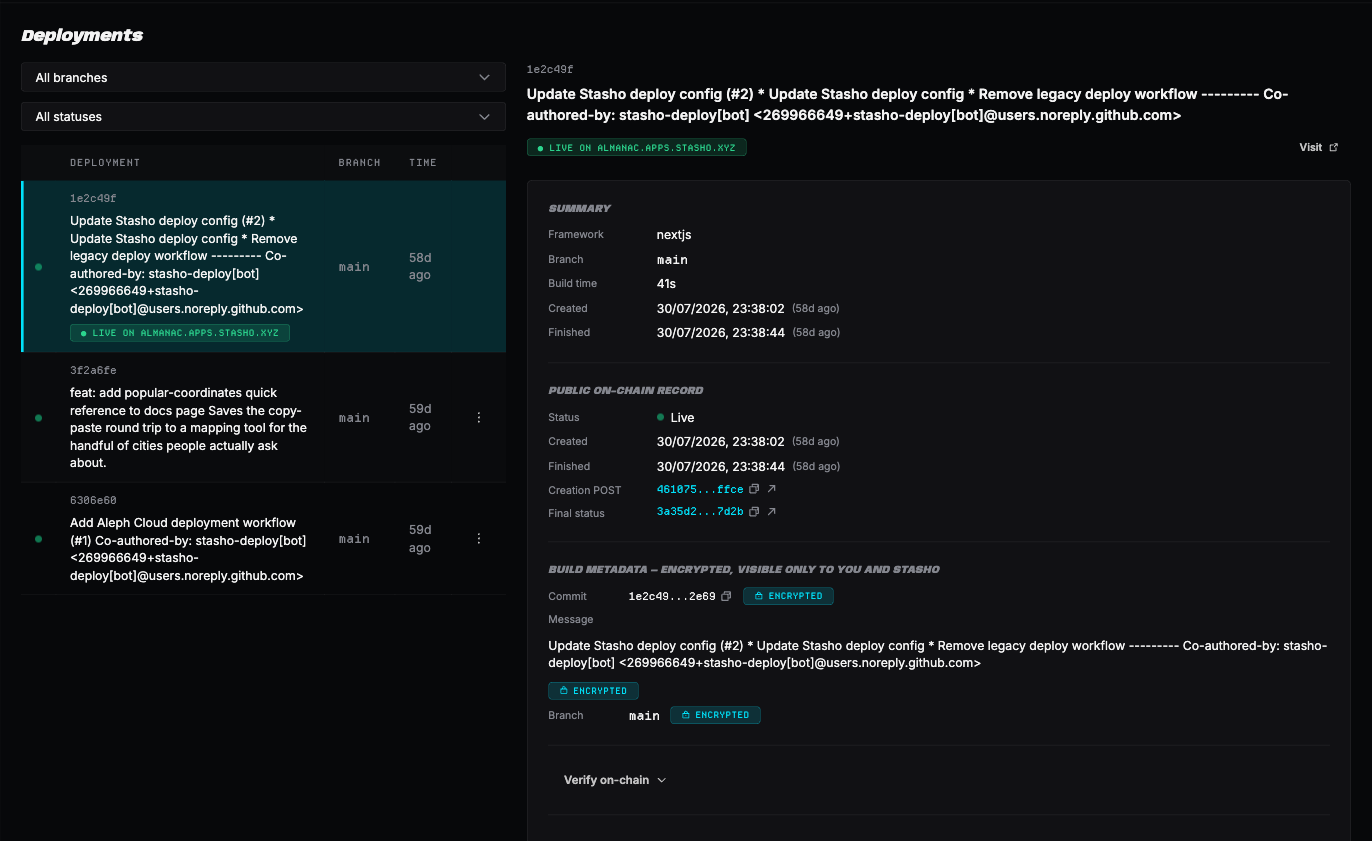
Every build names who made it. A build published by an agent key reads Published with key "…" beside its message, and the project Overview reads Created with key "…" on a site a key created; a build from a push or a Redeploy carries its commit instead. The key's name is the attribution, so name keys after what holds them ("Worker prod", "Claude chat").
The detail pane shows the build's facts (CID, framework, branch, build duration), its source (commit, message, error output if it failed), and its on-chain record:
- Verify on-chain — a collapsed expander showing the chain of on-chain messages behind this deployment, each linking to a public explorer. See Your data on-chain for what you can verify.
- Raw JSON — the unprocessed on-chain messages, for the skeptical.
Redeploy
What it does: builds and publishes the latest commit on your production branch, without you pushing anything. Note it's not a re-run of an old build — if the branch has moved since the last deploy, you get the new commits.
When to use it: after a failed build you've since fixed, after changing environment variables, or any time you want a fresh build without an empty commit.
Click Redeploy on the project Overview. The button dispatches the workflow and waits for the new deployment row to appear — GitHub's runner queue can be slow, so after ~30 seconds you'll get a link to the Actions run for reassurance. If the button reads Re-authorize instead, a deploy write was blocked pending a signature from you — see Keys & authorizations.
Instant rollback
What it does: re-points your live site to a previous build, instantly, with no rebuild. Every past build is still pinned on IPFS at its own CID while your wallet has credits, and rollback just changes which one your domains serve.
- On the Deployments page, pick any previous
livebuild and click Roll back to this - The confirmation dialog shows exactly what will change — each attached domain and the CID it will serve — plus a Preview this build link so you can eyeball the target before committing
- Confirm. Domains re-point within seconds, and serve the build once the gateway republishes (minutes, sometimes 40 or more; see custom domains)
After a rollback, the serving build shows a LIVE · rolled back badge with an Undo rollback button that re-points back to the latest build.
A rollback is not a pause. The next push to your production branch (or Redeploy) builds and publishes normally, and your domains serve that new build. Roll back to buy time while you fix the bad commit — then push the fix.
Only builds that completed (live, with a pinned artifact) can be rolled back to — a failed build never produced anything to serve.
Abandon
What it does: marks an in-flight deployment as failed, immediately and permanently. Offered on the deployment's detail page (the Overview's pipeline card links there with View deployment) while the deployment is in flight: anything not yet live or failed.
Your site is unaffected — it keeps serving the last good build. The app also tries to cancel the GitHub Actions run, but even if the workflow finishes on GitHub's side, the abandoned deployment stays failed and nothing gets published from it.
When to use it: a deploy is stuck and you want to clear it now instead of waiting. A stuck deploy is also auto-failed for you, after 15 to 60 minutes depending on its status.
Verification
- After Redeploy: a new deployment row appears and walks the pipeline to
live - After Rollback: the target build wears the LIVE badge, and your domain serves it. The pointer moves in seconds; the gateway follows in minutes, sometimes 40 or more (see custom domains)
- After Abandon: the deployment reads
failedand the previous build still serves
Working with an agent
What an agent can do depends on the key's scopes and on the project:
| Action | Uploaded site | Repo project | App VM app |
|---|---|---|---|
| Redeploy | publish key: publish a new version | deploy key: redeploy | deploy key: redeploy |
| Roll back and undo | rollback key | rollback key | only an All sites key that signs for itself; otherwise yours |
| Abandon | yours | yours | yours |
Redeploy over the API dispatches the project's own workflow, so the build runs in your GitHub Actions as it does from the button. The agent gets a runId back and waits for the deployment with that runId to read live in the deployment list. It never opens a pull request. If the project's workflow is not set up it stops with setup_required, and with repo_unreachable when GitHub must be reconnected; both are for you to fix in the dashboard.
Roll back over the API points the project at an earlier live build, with no rebuild, and live moves to it in the deployment list. Undo clears the pin. On an App VM app the VM reads a rollback only from a key that signs for itself, so any other key is refused with app_rollback_needs_signer: create an All sites key with My agent signs and rollback (see Keys & authorizations), or roll back in the dashboard. Each redeploy, rollback and undo spends one of the key's daily deploys.
Prompt for your agent
Copy this into Claude Code, Cursor or any agent that can run shell commands. Use it when the key has read, deploy and rollback and you want a bad build replaced.
text
Read https://docs.stasho.xyz/reference/agent-api.md. My Stasho project <project> is serving a
bad build. My agent key (in STASHO_AGENT_KEY, never ask me to paste it, and never write it
into a file) has read, deploy and rollback. List the project's deployments and tell me which
one is live and which earlier live build looks good. Ask me before you roll back. For a
fix that is already pushed, redeploy instead, then poll the deployment list until the entry
with the returned runId reads live. Verify through the live flag or the build's CID URL, not
by fetching my domain, which can serve the old build for minutes after a rollback or redeploy:
never retry or roll back again because of that. Report the live deployment id and url. If you get
app_rollback_needs_signer, setup_required or repo_unreachable, stop and tell me what the
message says: those are mine to fix in the dashboard.
What the agent hands you, when the action is yours (abandon, or a rollback its key cannot do), in these words:
text
Open the project in the Stasho dashboard. To build the latest commit: click Redeploy on the
Overview. To serve an earlier build instead: open Deployments, find the build with commit
<sha>, open its ⋮ menu (or click the row) and choose Roll back to this; check the dialog lists
your domains and the build's CID, then click Roll back. To clear a stuck deploy: click View
deployment on the Overview's pipeline card, then Abandon, and confirm. Tell me when the build
wears the LIVE badge (or its detail reads Failed, for Abandon), and paste me the CID the
rollback dialog showed.
How the agent verifies it afterwards. The deployment's own URL is content-addressed, so a fetch proves which build is served:
bash
curl -sI https://<cid>.ipfs.aleph.sh/ | head -1
curl -s https://<your-host>/ | grep -c '<text only the wanted build contains>'
The first line confirms the build exists on the gateway; the second confirms your domain serves it. Pick a marker the wanted build contains and the bad one does not, such as a version string or a changed heading, by fetching both builds' gateway URLs first. The domain can lag the build by minutes, sometimes 40 or more, because the pointer moves in seconds but the gateway republishes later. A miss on the domain right after a rollback or redeploy is the gateway catching up (FINALIZING), not a failed action. On an uploaded site the agent can also read the site: latestDeployment.status reads live and url is the version being served.